
Modern Events Calendar
If we’ve installed the Modern Events calendar on your Spectra site, this article will show you how to add and manage events. If you’ve been exploring different options for events and want to move forward with the calendar, get it touch with us if you’d like us to proceed with the install.
Adding Events
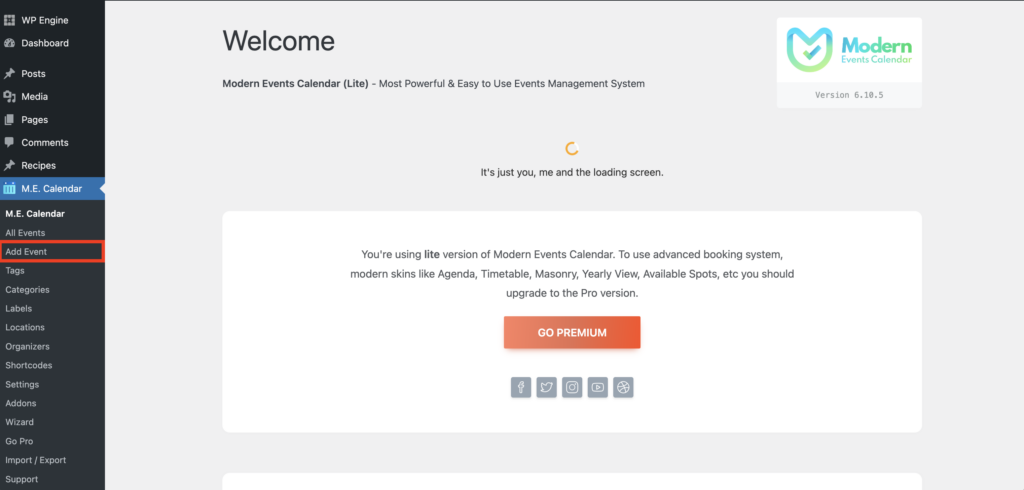
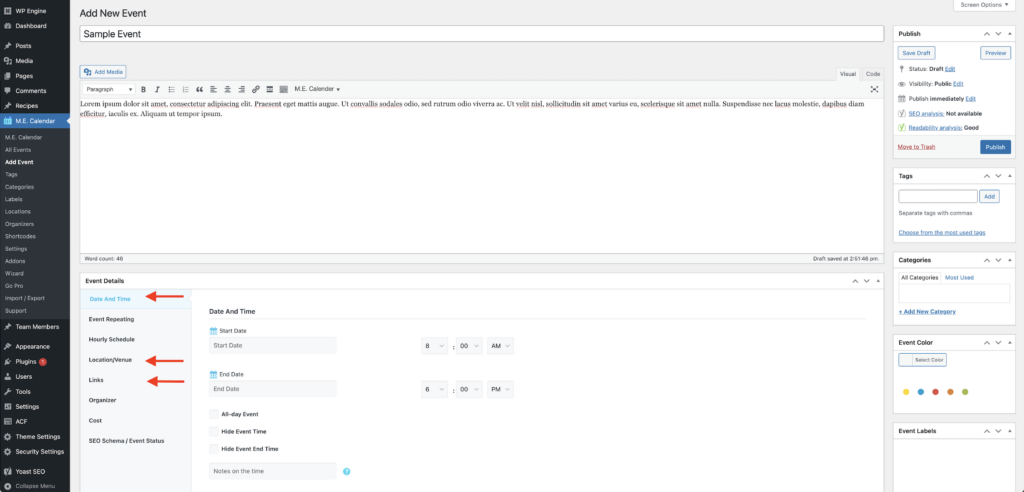
1. Once the calendar plugin has been installed on your site, you’ll see a new item in the black sidebar on the left called M.E. Calendar. To add an event, click on Add Event under it.
2.Start by adding an event title and description
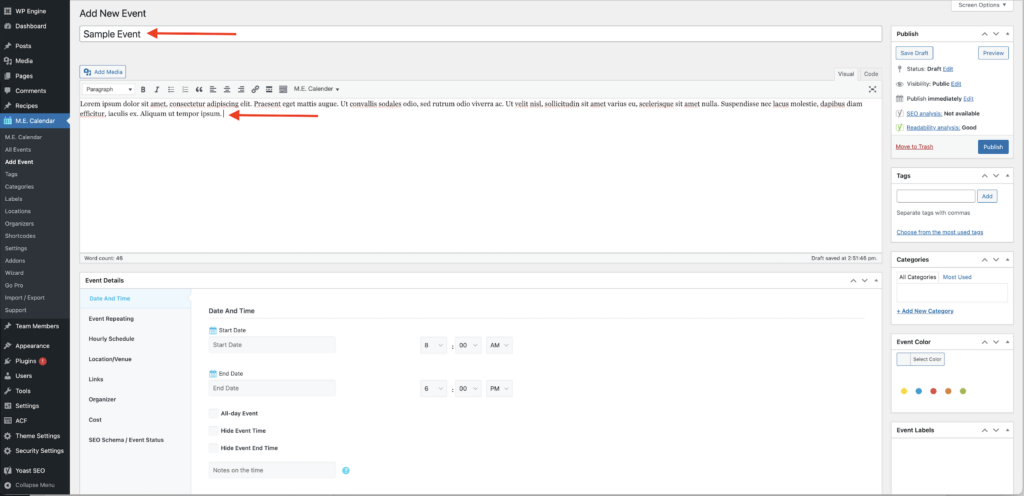
3.Next enter event details by clicking on the tabs on the left. Typically, you’ll use Date and Time, Location/Venue and optionally, Links
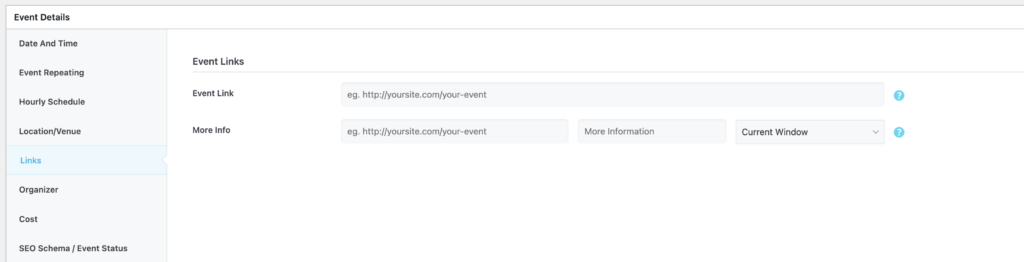
If you’re adding an event Link, you have 2 options:
- Event Link will open an event detail page for your event created by the calendar
- More Info will take the user directly to the page you are linking to (for example an C7 event ticket page), without showing the calendar-generated page
Feel free to experiment with both options
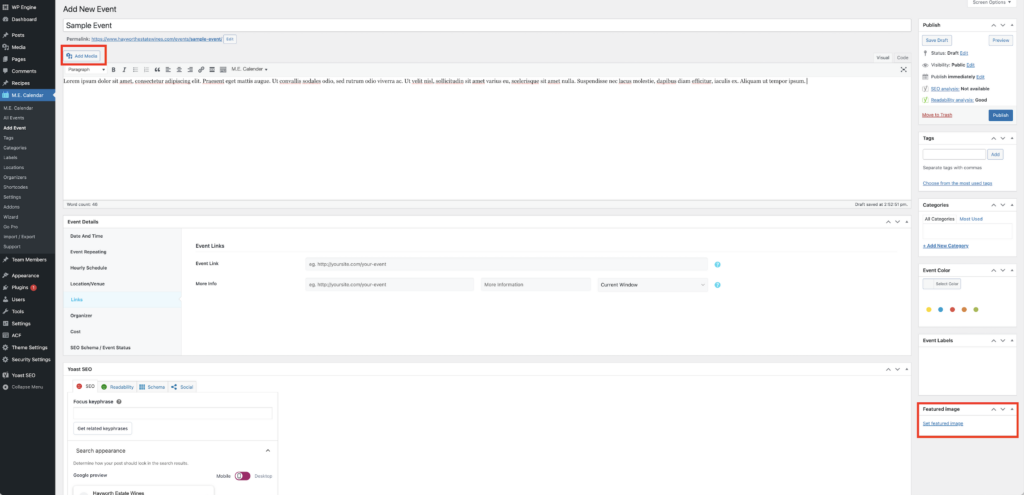
4. You also have 2 options to add an image to your event:
- You can add the image directly in the description box by using the Add Media button at the top of the box
- Or you can add a Featured Image by clicking on the Set Featured Image link in the bottom right
Again, feel free to experiment with both options to see which one works best.
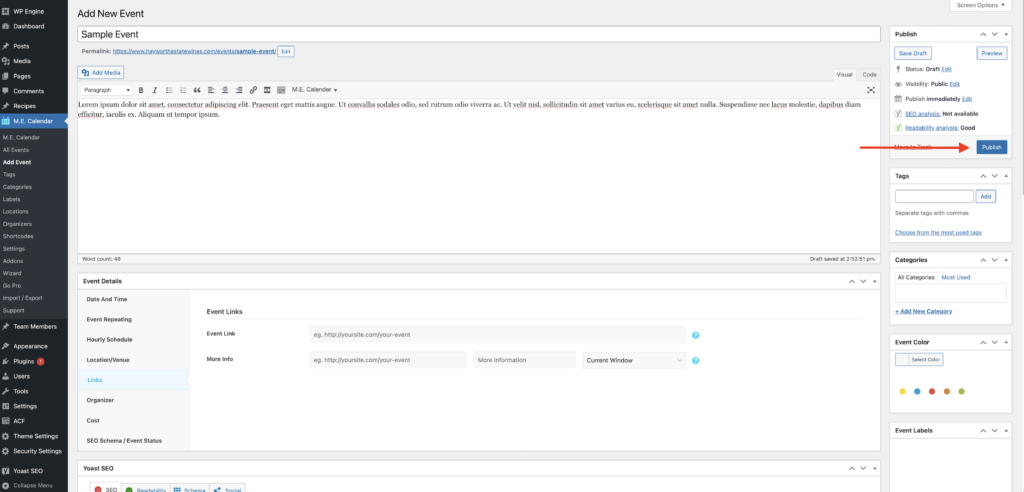
5. To publish your event, click on the blue Publish button in the top right
Managing Existing Events
To manage existing events, click on All Events, you can then hover over any event to access quick links for Edit, Quick Edit, Track, View and Duplicate.
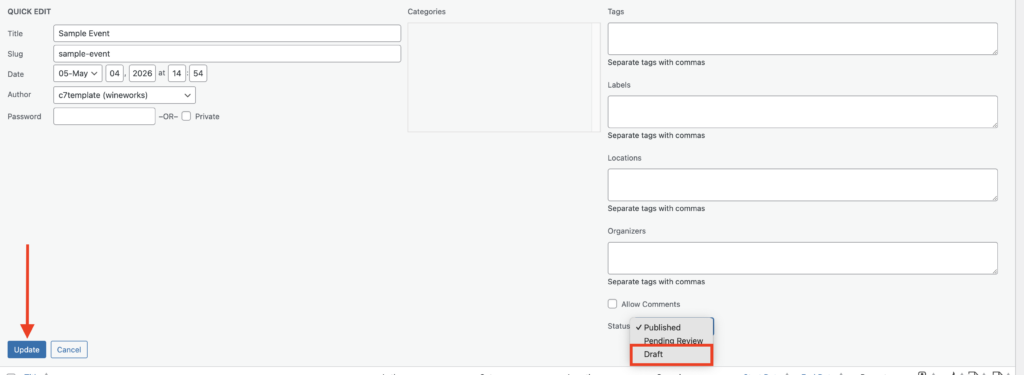
To turn an event to draft mode, click on Quick Edit, then change the status to Draft and click the blue Update button