
Adding a Club Sign Up Button
There are 3 ways to add a club sign up button to your club page.
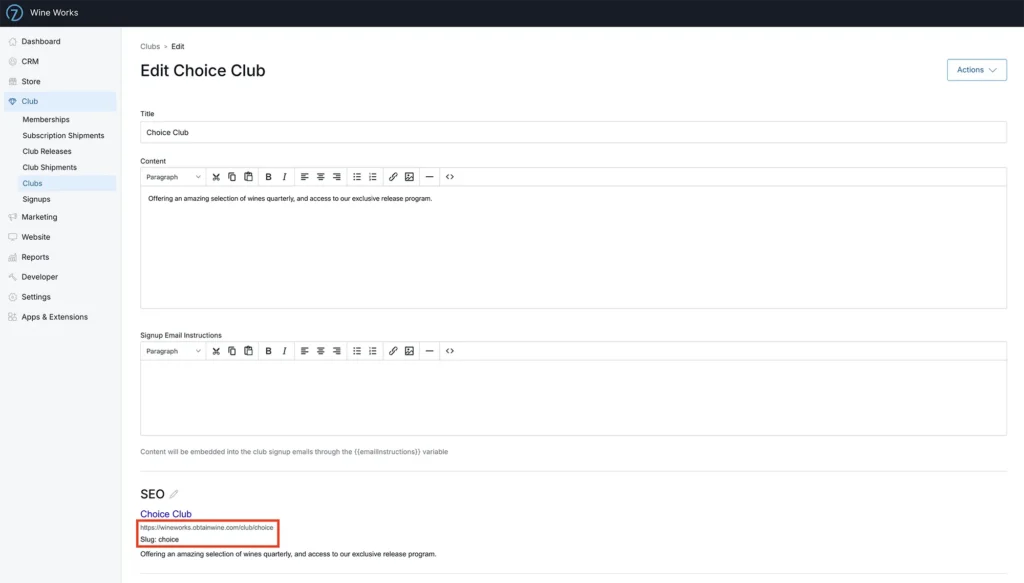
The first thing you need to do is capture the slug or the URL of your club from the Commerce7 Admin Panel. You can find this by going to the club detail screen in Commerce7
Option 1: Simple Link
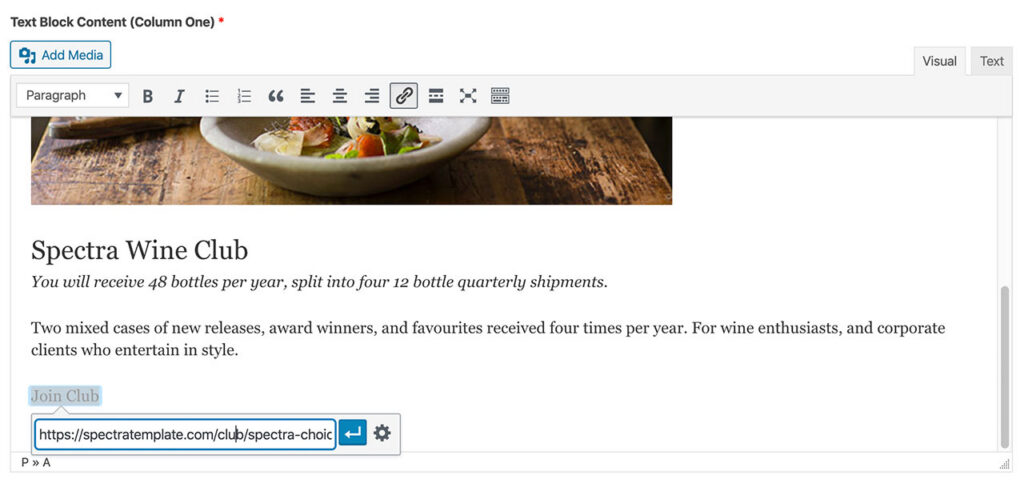
The simplest way is to simply link to the club using the club URL. Create some text on your page for example “Join the club” and add the following URL as a link. https://spectratemplate.com/club/spectra-choice-club
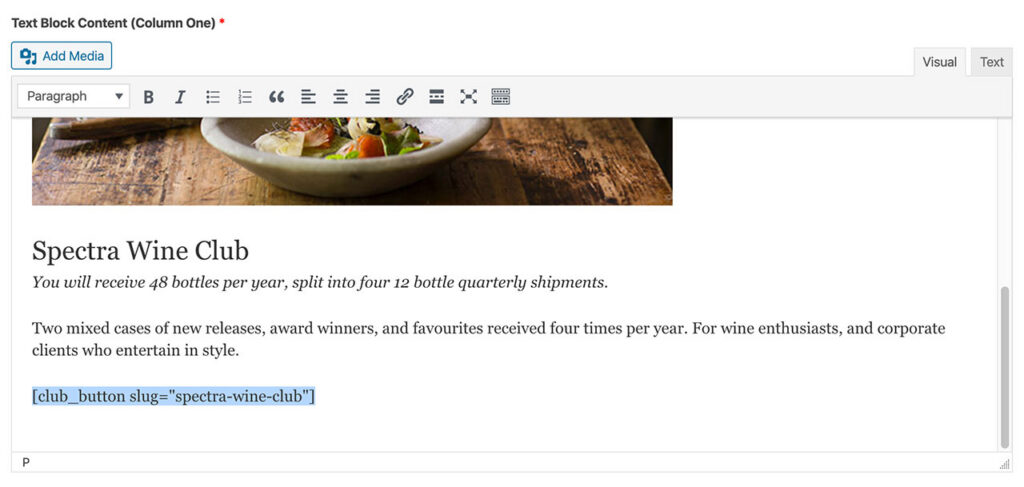
Option 2: Smart Commerce7 button
To insert a smart club sign up button which changes based on whether the customer is a club member or not. The text in the button changes from “Join Now” to “Manage Club”
Use the following short code: [club_button slug="spectra-wine-club"]
(the slug is obtained from the club setup in the Commerce7 admin panel)
Option 3: Club Sign with Dropdown
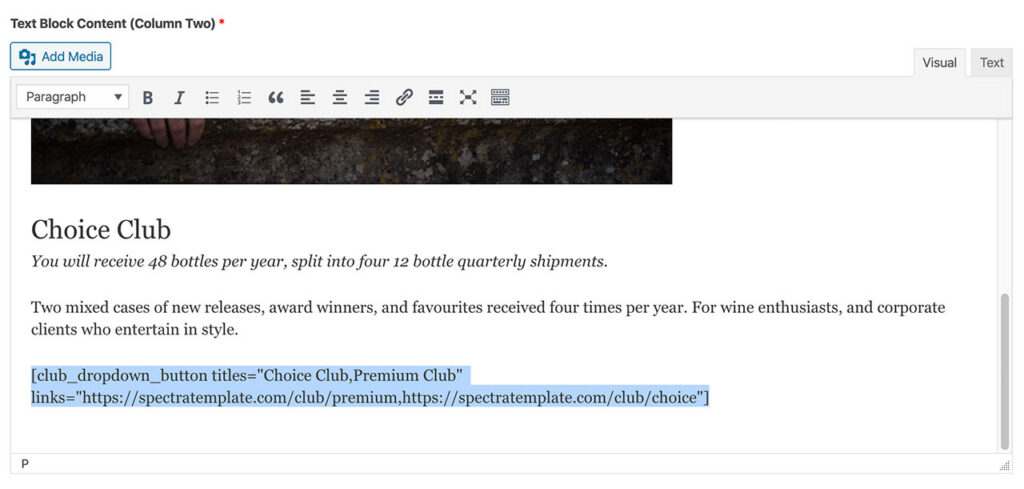
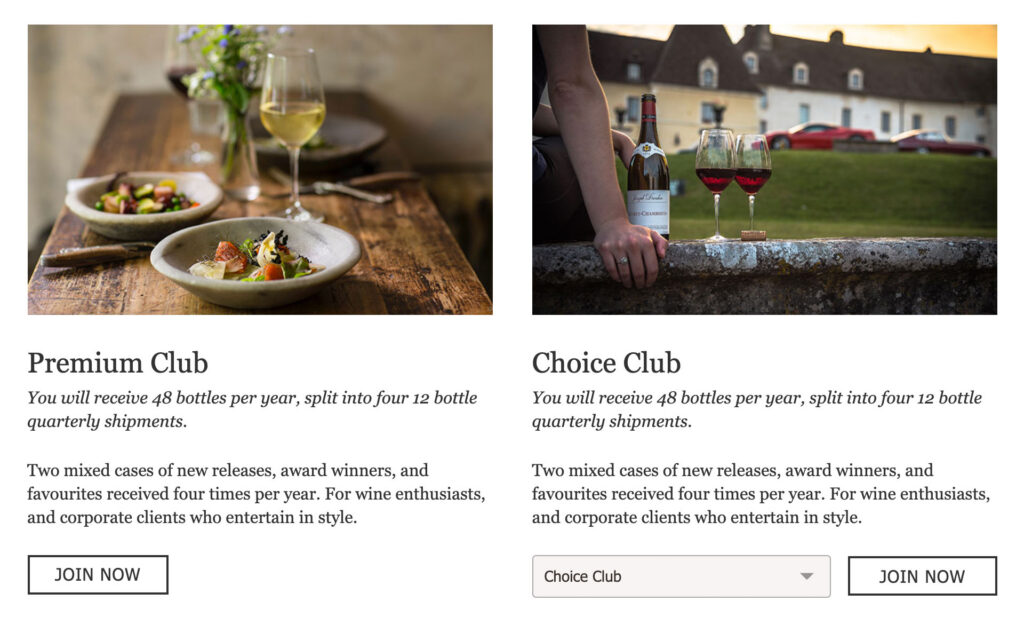
For clubs that have multiple options sometimes it is better to show a dropdown select. Spectra offers a WordPress “shortcode” that will render the dropdown.
For this method you need the club URL
There are 3 fields in this shortcode:
- titles
- links
- join_btn_text
only titles and links are required.
If you do not enter anything for the join_btn_text, the join button says “Join Now”.
example 1: [club_dropdown_button titles="Choice Club,Premium Club" links="https://spectratemplate.com/club/premium,https://spectratemplate.com/club/choice"]
example 2: [club_dropdown_button titles="Choice Club,Premium Club" links="https://spectratemplate.com/club/premium,https://spectratemplate.com/club/choice" join_btn_text="Sign Up Today" ]
Note: the club dropdown does not “smart”, and does not change based on whether the customer is a club member or not. Other options for club members should be provided to manage their club if using this shortcode.