
Commerce7 Reservations
You have two options for integrating Commerce7 reservations into your website. This article walks you through each one and explains how they work.
Individual Reservation Widgets
With this option, you’ll add content for each reservation/experience individually (image, title, description) directly to WordPress, then connect each experience to Commerce7 via a reservation widget. You’ll find instructions for the reservation widget here: https://github.com/wineworks/spectra/wiki/1.-Reservations
You can use a variety of layouts to display your experiences in WordPress, two popular options are:
Stacked Experiences
Use a Text Image Feature Block or a Text Block set to 2 columns for each experience.
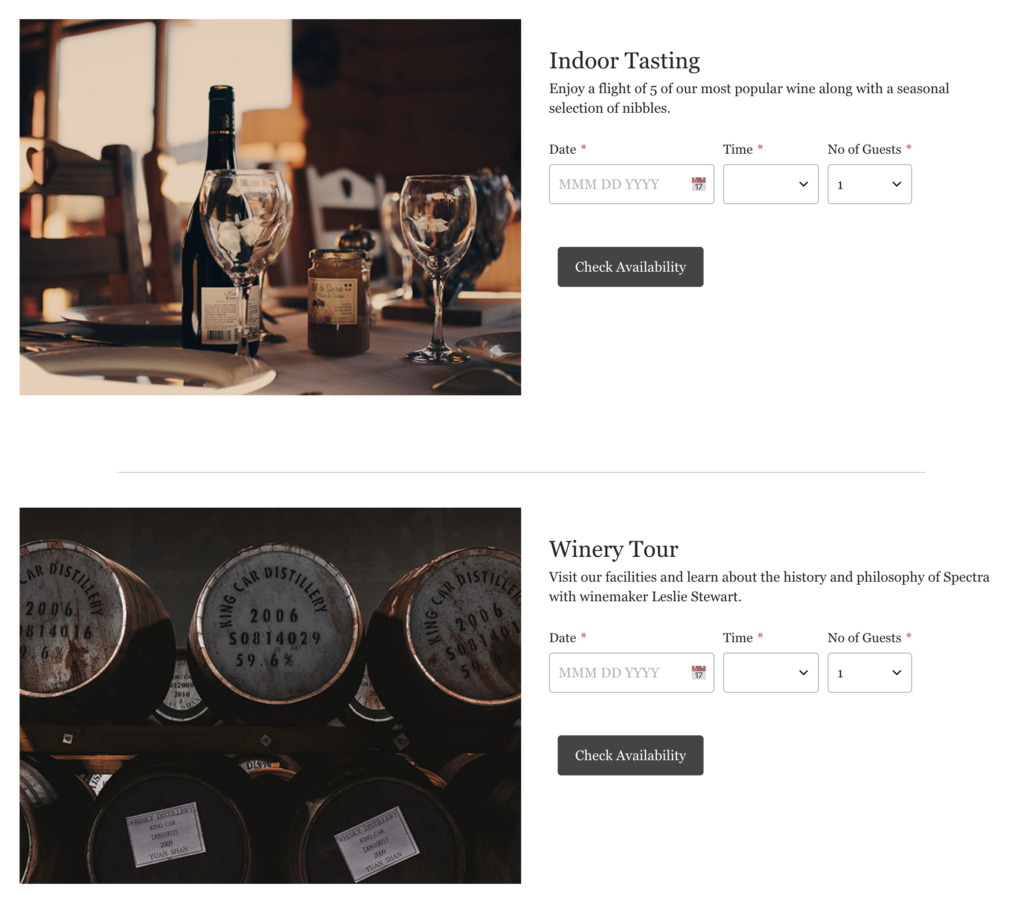
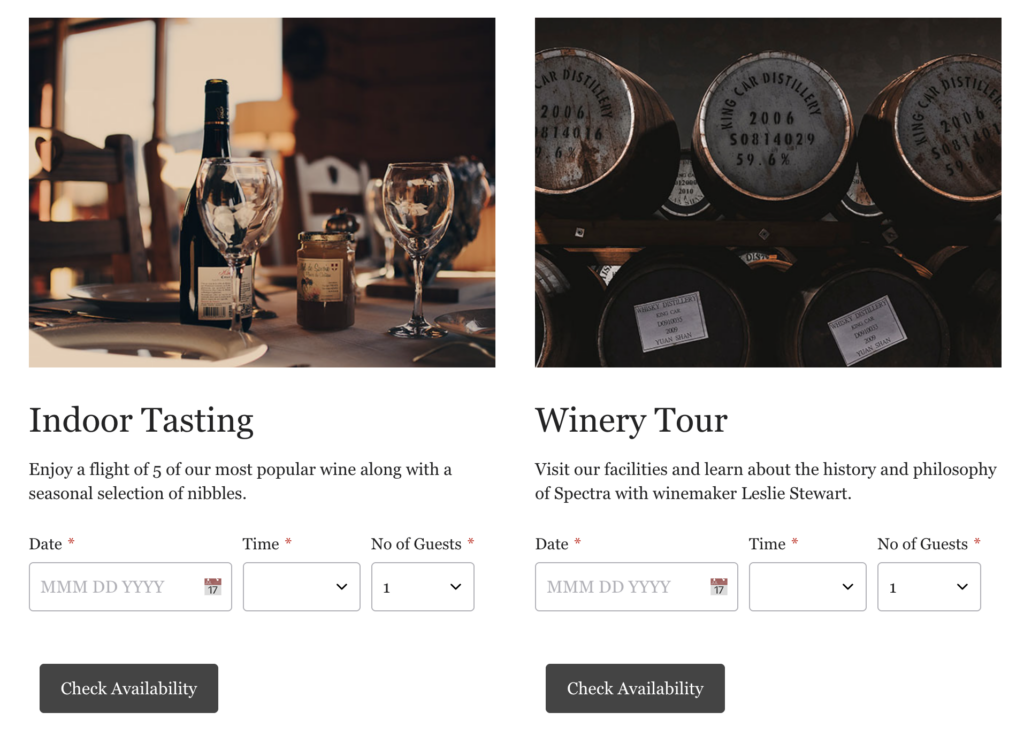
Side by Side Experiences
Use a Two, Three or Four Column Feature Block or a Text Block set to two, three or 4 columns.
Reservation Dropdown
The reservation dropdown automatically displays all active experiences in a dropdown, without you having to create layouts in WordPress or update the WordPress page as experiences are added and removed.
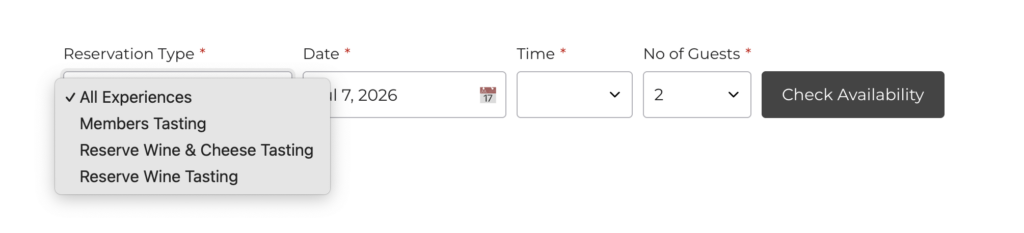
However, there are a few caveats you should be aware of:
- The dropdown can only be added to a page with the URL /reservation/ it will not work on any other URL
- When the user makes a selection from the dropdown and clicks Check Availability, the page reloads, which takes the user back to the top of the page, forcing them to scroll back down to see the details of the experience they’ve selected. You can see this behaviour here: https://spectratemplate.com/reservation/
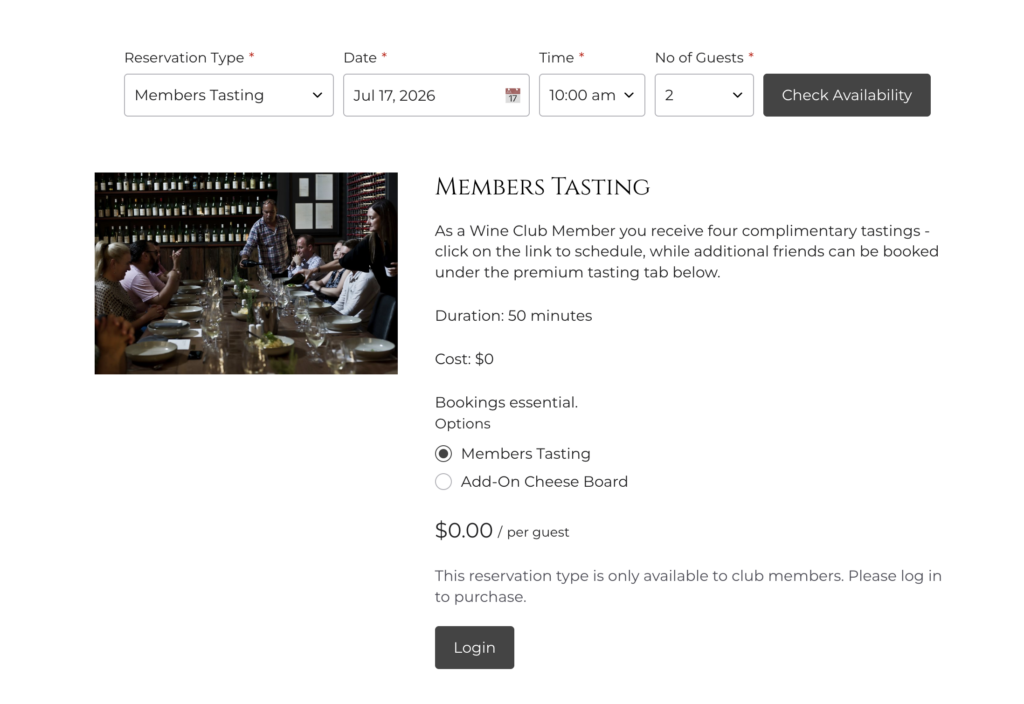
To move forward with this option, please reach out to Wine Works so we can set this up for you.