
Adding Schema to Your Website
What Is Schema and Why Does It Matter?
Schema markup is hidden code that helps search engines like Google better understand your business. A well-structured website also helps ensure your information is represented accurately across AI tools like ChatGPT, Claude, etc. Schema doesn’t change how your website looks to visitors, but behind the scenes, it gives rich details about who you are, what you offer, and how to find you.
For wineries, this can mean showing up in search results with extra details like your location, hours, events, and FAQs displayed right on the results page before someone even clicks your link. This is often referred to as a rich result or rich snippet, and it can significantly improve how your website performs in search.
What Schema Is Available on Spectra
Your Spectra site currently supports four types of schema:
- Core Business Schema: Your foundational business information (name, address, hours, contact details)
- Club Schema: Details about your wine club offerings
- Service Schema: Information about private events and venue hire
- FAQ Schema: Frequently asked questions and answers displayed in search results
Each one is set up separately, and you only need to fill in the information that applies to your winery.
How Do You Add Schema?
While you won’t be writing code from scratch, some of the steps in this guide involve editing shortcodes, simple snippets that look a little like code but are really just labeled fields for you to fill in with your winery’s information. If you can update a form or edit a spreadsheet, you should find this pretty straightforward.
Core Business Schema
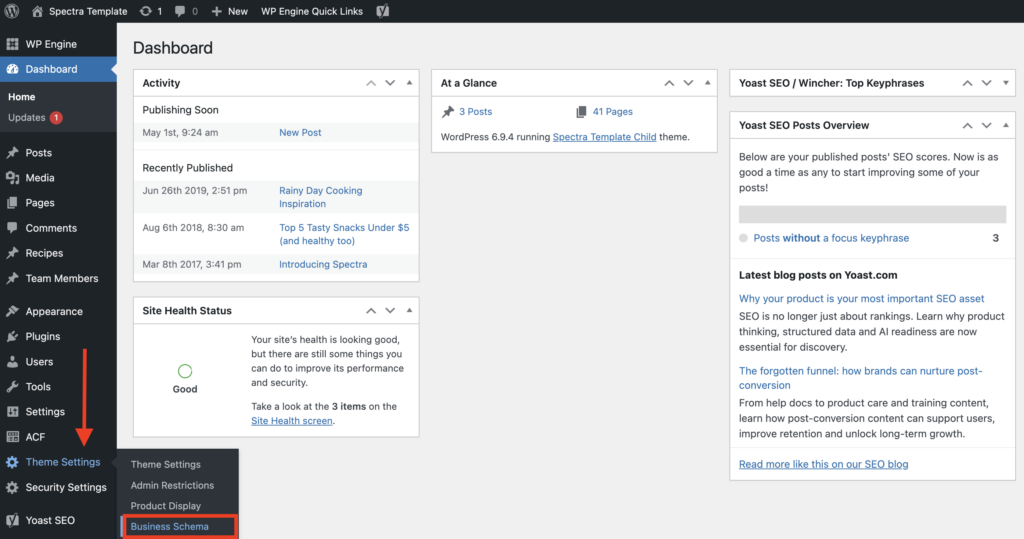
A new Business Schema section has been added to the Spectra template. To access it, hover over Theme Settings in the black sidebar on the left, then select Business Schema from the dropdown:
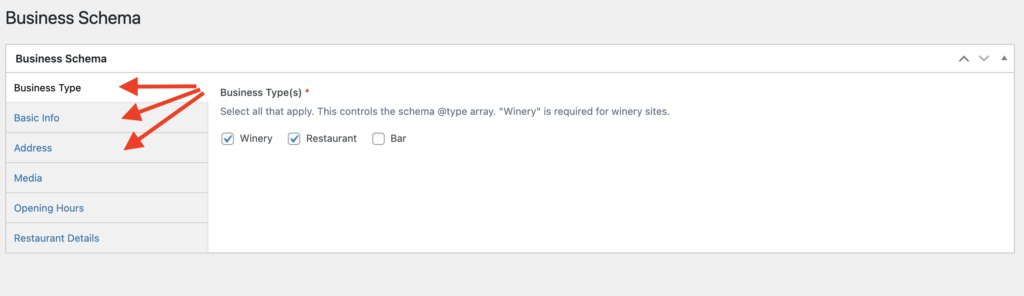
In the Business Schema area, you’ll see a number of tabs on the left. Click on each section and fill out the ones that are relevant to your business starting with Business Type:
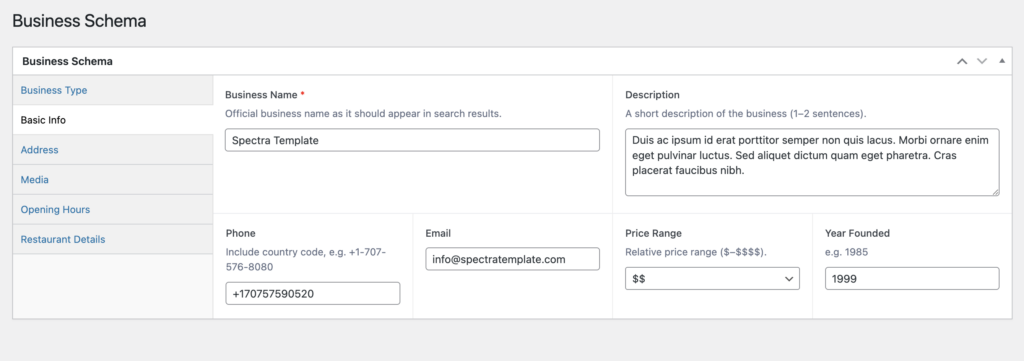
Then enter basic details such as business name and contact details:
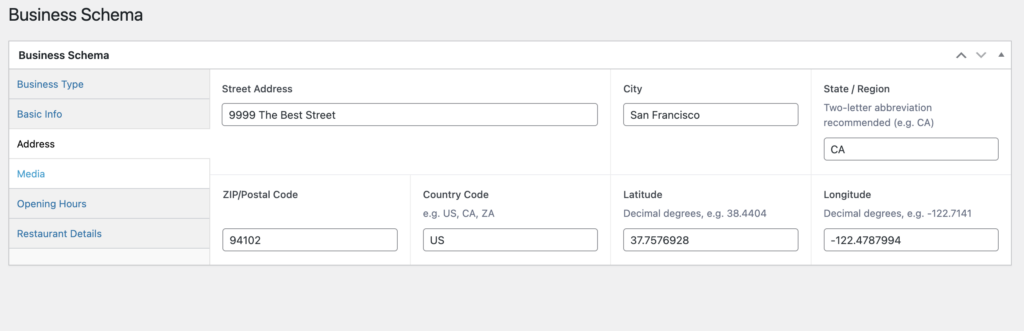
Followed by your business address:
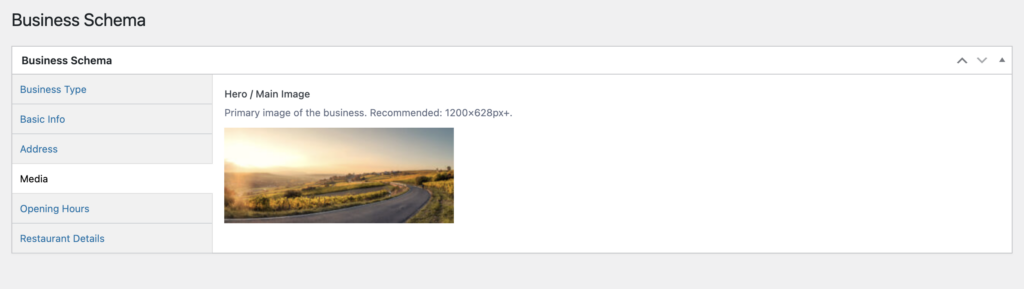
A hero image (which may be displayed in Google Knowledge Panel, Google Business Profile and/or Rich Results, at the search engine’s discretion):
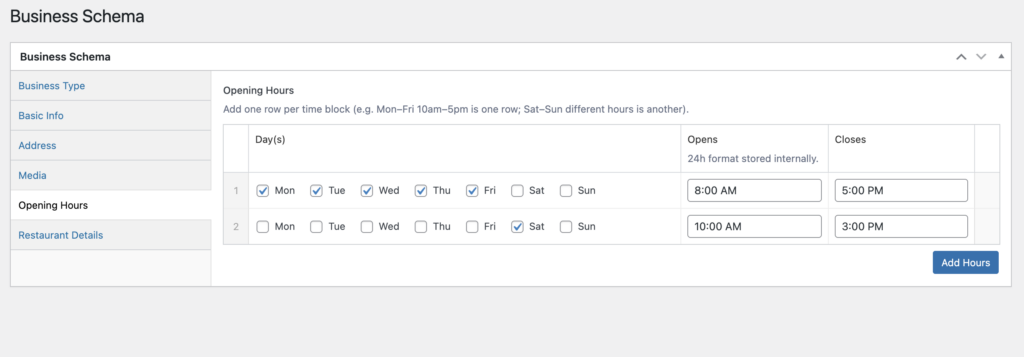
Hours of operations (note that you can add additional rows by using the Add Hours button)
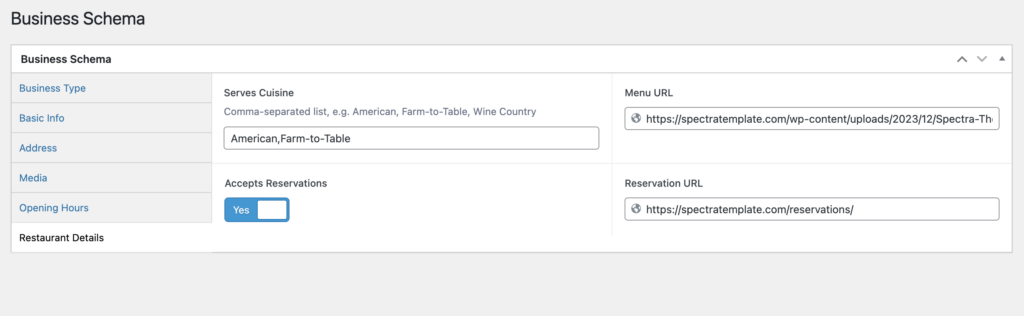
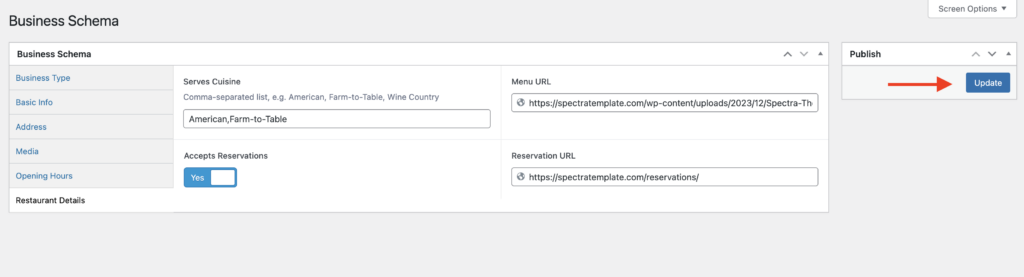
And finally restaurant details, if relevant to your business:
To publish, click on the blue Update button in the top right:
Club Schema
Club schema can be added directly into the club button shortcode for each club. Button shortcodes can be accessed in Text view and currently look like this: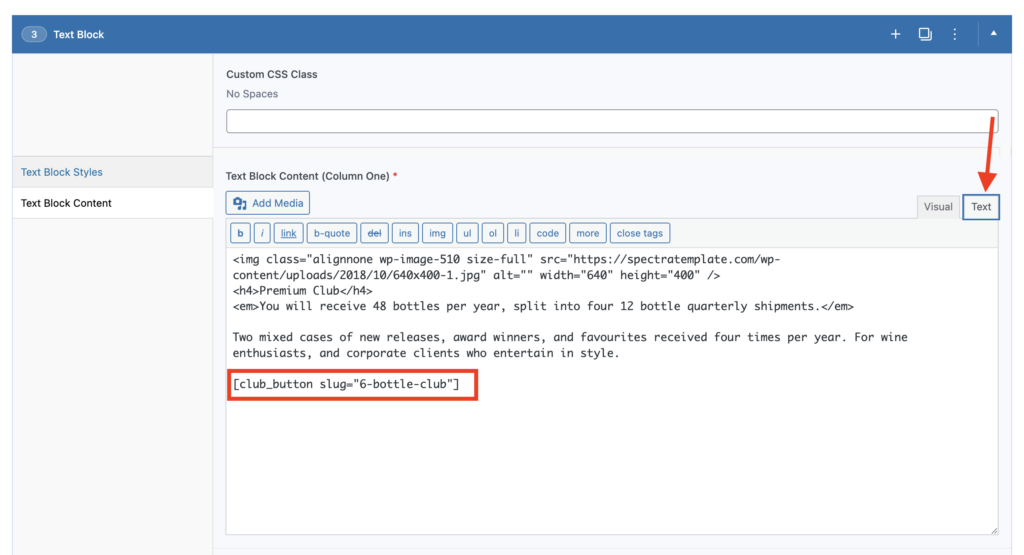
The following parameters can now be added, separated by one blank space: Name (Mandatory), Description, Price, Frequency, Bottles, Properties > Minimum Commitment and Properties > Discount
Save the page to publish the update.
Service Schema for Private Events
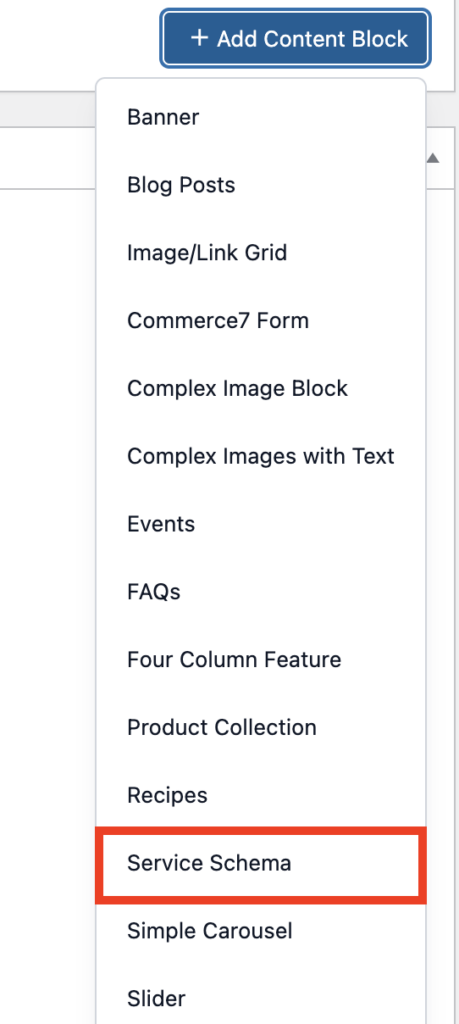
Service schema can be added for private events, corporate events, weddings and venue rentals via the new Service Schema block. Click on the blue Add Content Block button and select Service Schema.
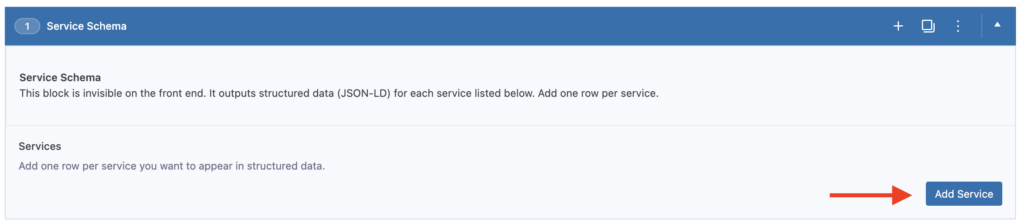
Next, click on the Add Service button
Then fill out the relevant information for your service. You can add additional services by clicking the Add Service button again.
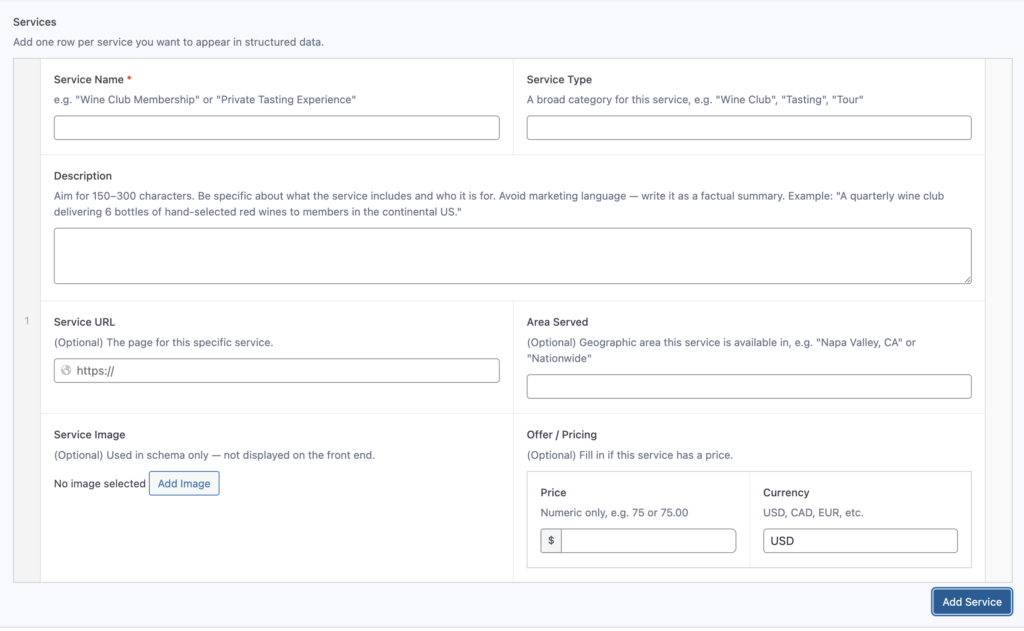
Save the page to publish the update.
FAQ Schema
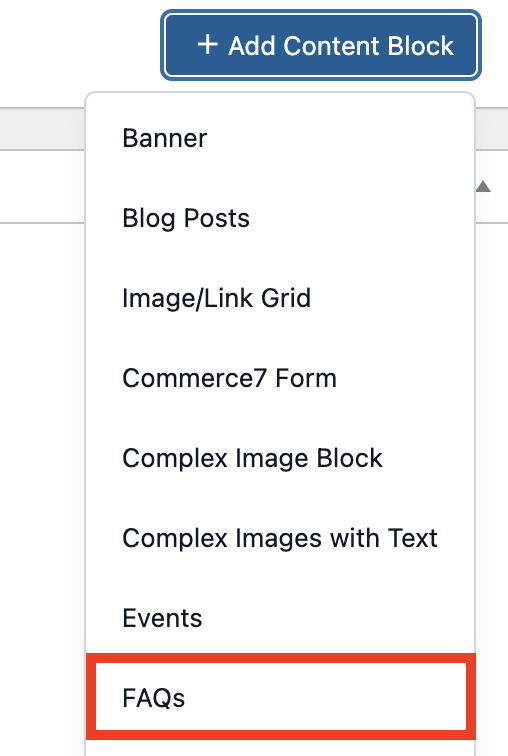
FAQ schema has been built in to the Spectra FAQ block, no additional setup is required, simply add the block to any page and add at least one question and answer.
How to Check If Your Schema Is Working
Once you’ve filled everything in, you can verify it’s set up correctly using Google’s free tool:
- Go to Google’s Rich Results Test
- Enter your website address and click Test URL
- Google will show you which schema it has detected and flag any issues
If something isn’t working, double-check that all required fields have been filled in and that there are no typos in key details like your address or phone number.
More Schema Coming Soon
We’re continuing to build out schema for Spectra. Upcoming additions will be covered in future updates to this guide.