
Adding a Popup to Your Site
Although WordPress / Spectra and C7 don’t have built-in popup tools, there are plenty of free third-party options you can use to quickly set one up.
If you’re using Mailchimp or Klaviyo for your marketing emails, they have built-in popup tools you can add to your website via a script. You can learn more about these here:
- Mailchimp: https://mailchimp.com/help/create-a-popup-form/ – You’ll use the Manual connection method
- Klaviyo: https://help.klaviyo.com/hc/en-us/articles/360026474752
3 Free Popup Plugins to Consider
If you’re using Commerce7 for marketing emails, one of these free popup tools is an easy way to increase email signups on your site.
Hustle
Explore Hustle here: https://en-ca.wordpress.org/plugins/wordpress-popup/
BDOW
Learn more about BDOW here: https://bdow.com/
Popup Maker
Take a look at Popup Maker here https://wppopupmaker.com/
How They Work
1. Install The Plugin
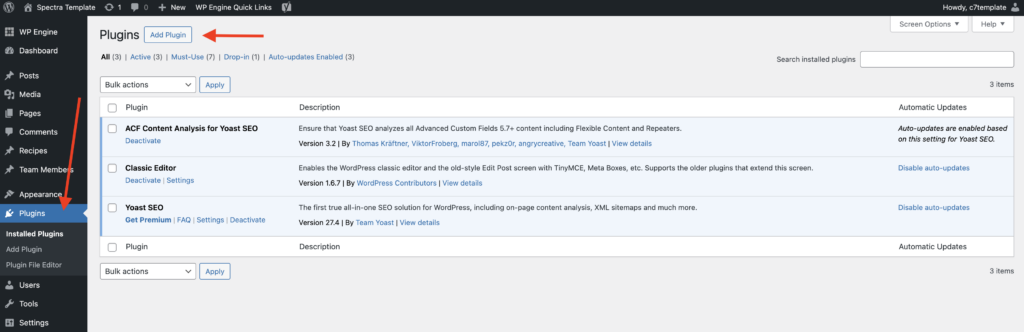
(a) In WordPress, click on Plugins in the black sidebar on the left, then click the Add Plugin button at the top of the plugin area
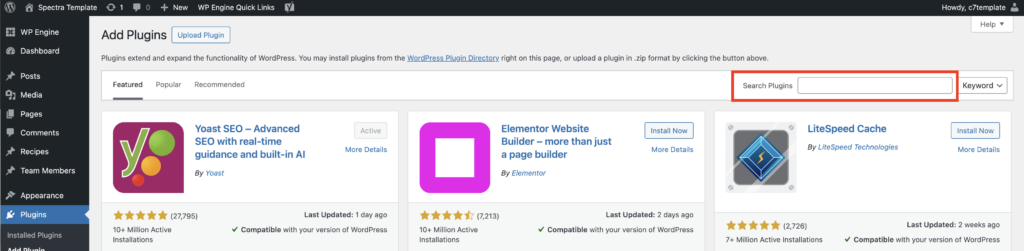
(b) Use the search bar in the top right to search for the plugin you want to install
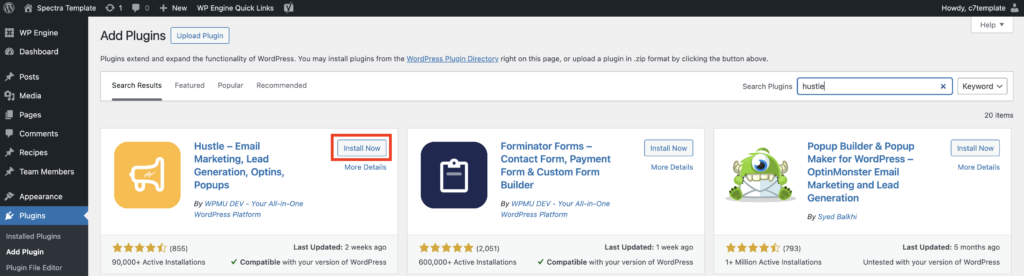
(c) Click the Install Now button on the plugin you chose to install it
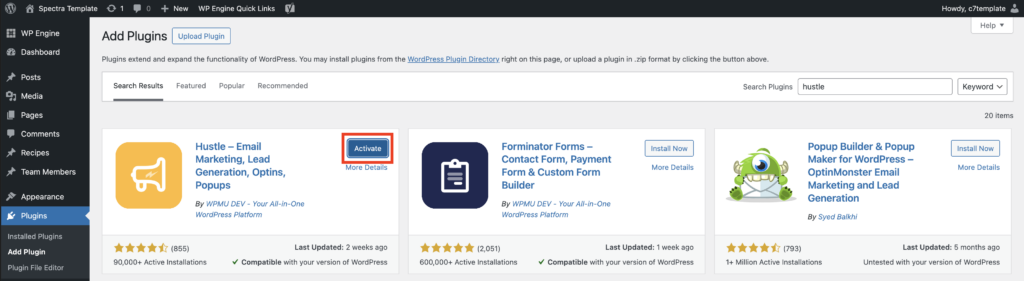
(d) Once the installation is completed, click on the Activate button
2. Design Your Popup
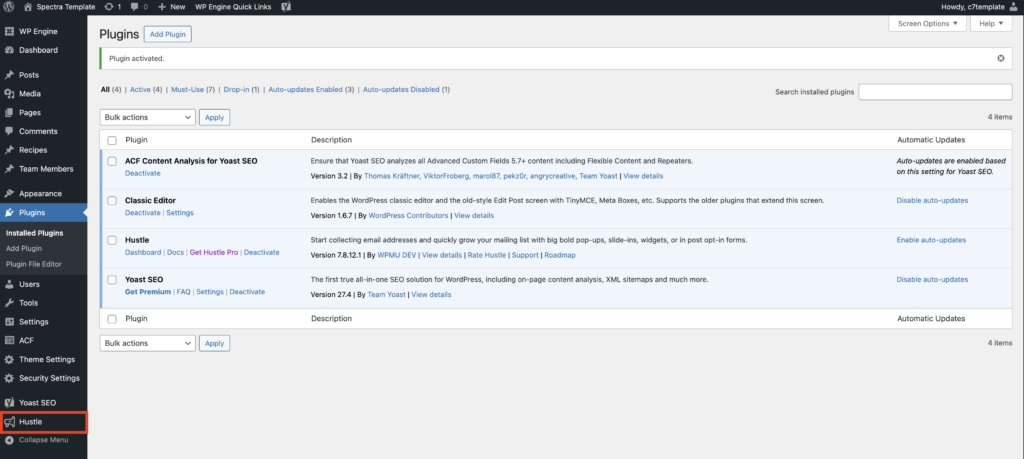
Once the plugin is installed, you’ll see a new item appear in the black sidebar menu. For example, this is how Hustle looks, other popup plugins have a similar setup. Click on the item to access the popup settings. Each plugin works a little differently, so it’s best to review the documentation provided by your chosen tool for setup guidance.
3. Add the C7 Subscribe Widget
Once you’re finished with your setup and design, add the C7 subscribe widget:
Click on the Code or Text view tab for the main content area, then add the code
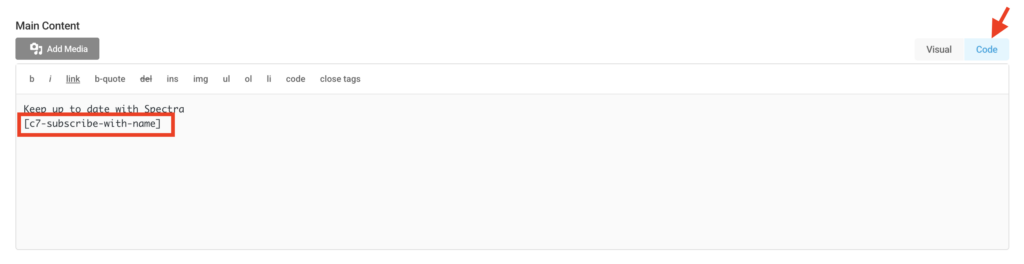
Use this code to capture First & Last Name and Email Address:
[c7-subscribe-with-name]
Use this one for Email Address only:
[c7-subscribe]
Note that it isn’t possible to add fields to the Subscribe widget. If you’d like more fields, consider using a C7 Form instead. You can read more about the differences between widgets and forms in this article: https://www.commerce7templates.com/commerce7-subscribe-widget/
4. Publish & Review
The C7 subscribe widget will typically not show up in preview mode so you’ll have to publish the popup in order to see the full design.
After publishing, you can continue to update the popup design and setting until everything is to your liking.