

Creating Anchor Links
Find out how to add anchors to sections on a page and link to a specific section.
1. Start by adding a title to your section, then click on the Text tab to access the code view:
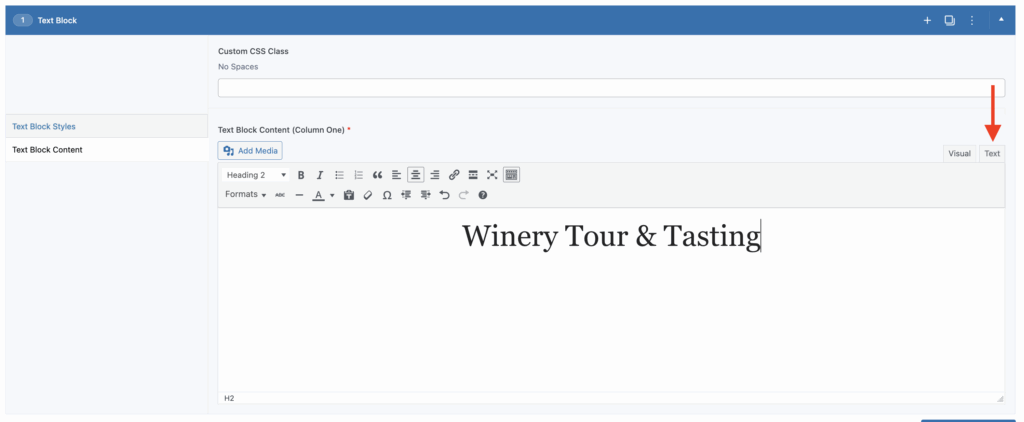
2. Once in code view, add the following inside the opening tag, immediately after the title tag (in this case h2):
id=”IDNAME”
Replace IDNAME with your choice of name, the example uses tour-tasting

3. Now you can add a text link or link any button to that section by using the # sign followed by your ID name, in this case, the link would be #tour-tasting if you’re adding the link on the same page as the ID.
If you’re adding a link on a different page, for example your homepage and you want users to be taken down to a specific section of a different page, you would use the full page URL, followed by the anchor link, for example https://spectratemplate.com/experiences/#tour-tasting
If you you find that anchor links are scrolling users too far above your section title or too far below it, get in touch with us and we can add a piece of code to your site to fix this.