

The Spectra Promo Bar
The Spectra Promo bar is a great tool for promotions (sales, shipping discounts, events) and notifications (closure, construction notices, etc). Here are instructions to use it:
Turning the Promo Bar On
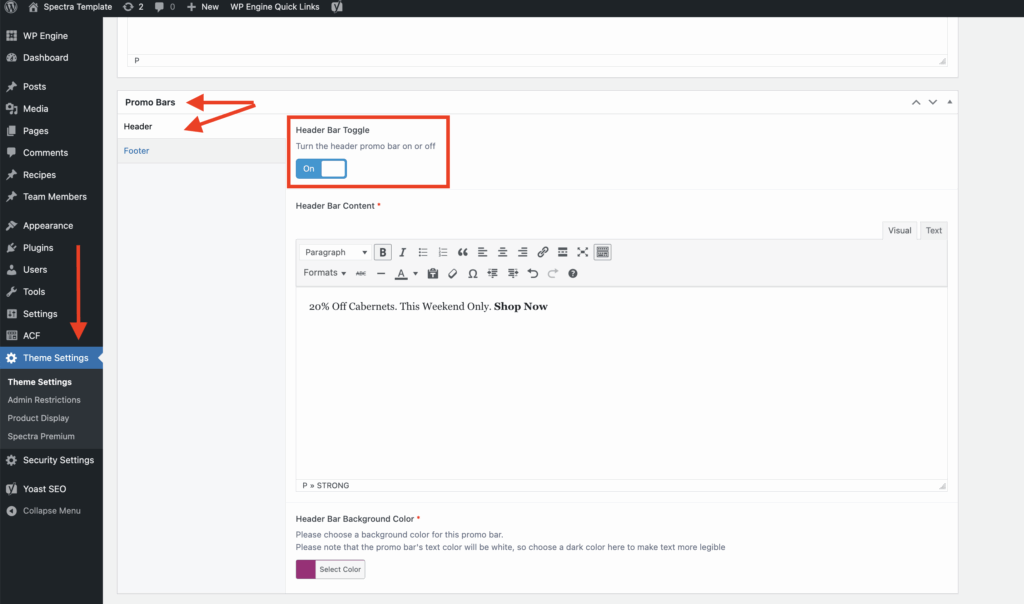
1. From the black sidebar on the left, select Theme Settings, the scroll down quite a bit until you find the Promo Bars section
2. You’ll see 2 tabs on the left, Header and Footer, select Header. Footer isn’t great for promotions but there may be some instances where it makes sense. Both versions of the promo bar work exactly the same.
3. Flip the Header Bar Toggle to the ON position
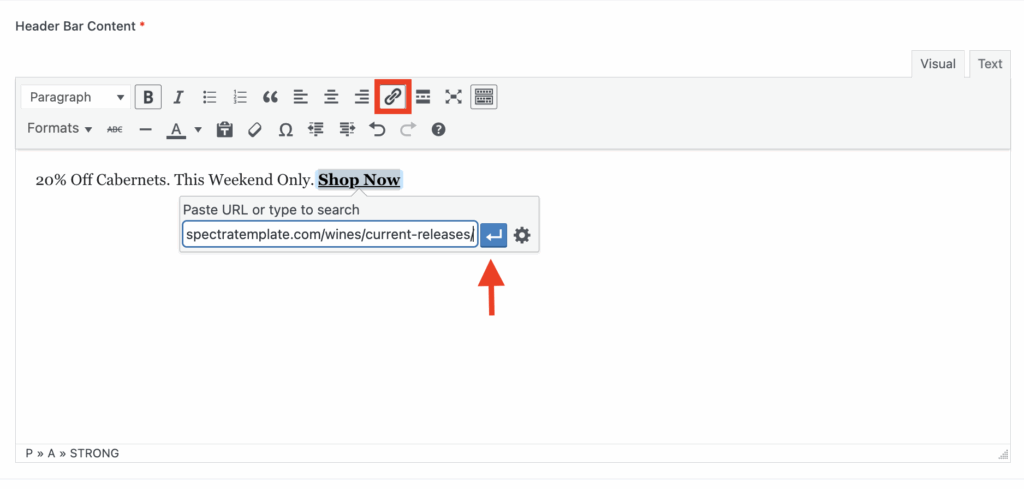
4. Add your text to to the content area. To create a hyperlink, highlight the text you want to make clickable, then click on the link tool in the toolbar. Add the URL to the window that opens up, then click on the blue arrow to activate the link.
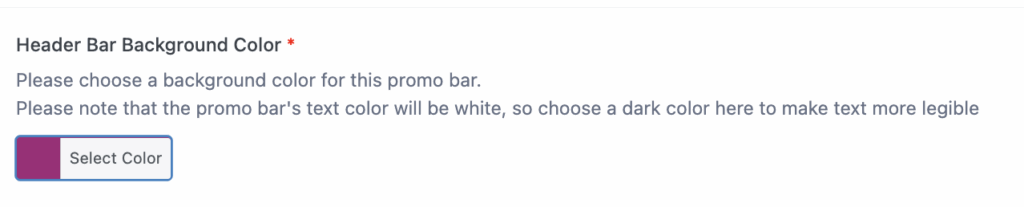
5. Click on the Select Color button to specify a different color
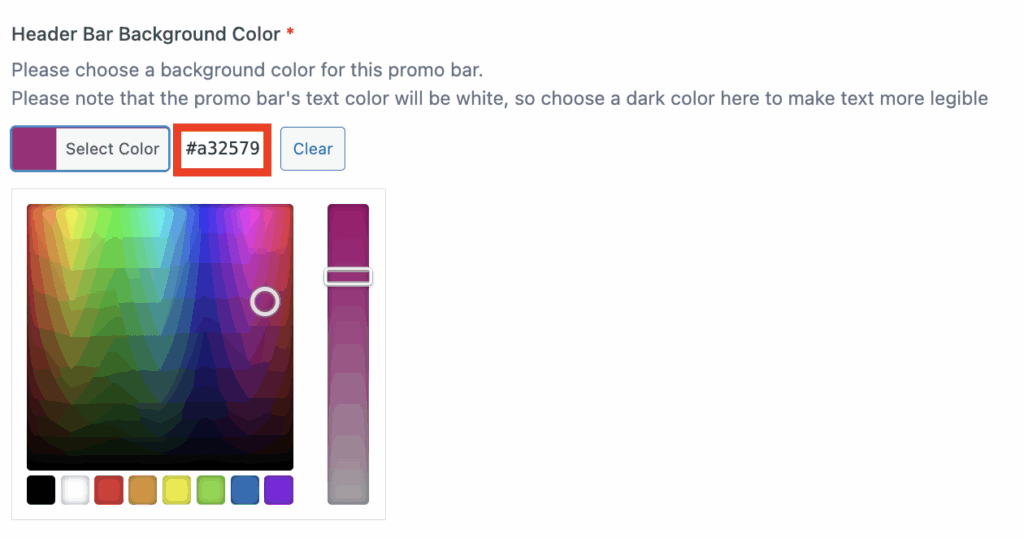
You can select a color by moving your cursor in the selector area or you can add a hex code to the hex field. The promo bar text is set to white so you’ll want to ensure you pick a background color dark enough for the text to be legible.
6. To publish the promo bar, scroll all the way back up to the top of the Theme Settings area and click on the blue Update button on the right.

Turning the Promo Bar Off
1. To turn the promo bar off, flip the toggle to the OFF position

2. To publish the update, scroll all the way back up to the top of the Theme Settings area and click on the blue Update button on the right.